版权声明:本文为博主原创文章,如果转载请给出原文链接:http://doofuu.com/article/4156180.html
云诺团队最近一直在给客户开发小程序商城。由于微信的限制。小程序暂时还不能分享到朋友圈。为了满足客户在朋友圈推广小程序的硬性需求。所以开发了一个微信小程序生成二维码分享海报的功能。翻了翻微信小程序的官方文档,没发现有现成的API接口。所以借助以前的绘图的知识。决定用微信小程序canvas来绘制二维码分享海报!微信小程序官方提供了canvas的相关接口。有接口就好办多了。其实原理也很简单,首先生成一张海报,接着在海报特定的位置绘制你的文字、图片、二维码,最后把小程序生成二维码海报保存到手机就可以了。不过如果是第一次生成微信小程序生成二维码分享海报还是能遇到不少的坑的。闲话不多说,开始吧!
小程序分销商城_团购小程序_小程序多门店商城_微信砍价小程序
首先定义一张画布,具体的大小、背景色可以自己调。由于布局很简单所以这里就不啰嗦了,直接看下面的代码吧
<view class='imagePathBox' hidden="{{maskHidden == false}}">
<image src="{{imagePath}}" class='shengcheng'></image>
<button class='baocun' bindtap='baocun'>保存相册,分享到朋友圈</button>
</view>
<view hidden="{{maskHidden == false}}" class="mask"></view>
<view class="canvas-box">
<canvas  style="width: 375px;height: 667px;position:fixed;top:9999px" canvas-id="mycanvas"/>
</view>
.imagePathBox{
width: 100%;
height: 100%;
background: rgba(0,0,0,0.7);
position: fixed;
top: 0;
left: 0;
right: 0;
bottom: 0;
z-index: 1000;
}
.shengcheng{
width: 80%;
height: 80%;
position: fixed;
top: 50rpx;
left: 50%;
margin-left: -40%;
z-index: 10;
}
.baocun{
display: block;
width: 80%;
height: 80rpx;
padding: 0;
line-height: 80rpx;
text-align: center;
position: fixed;
bottom: 50rpx;
left: 10%;
background: #ffe200;
color: #333;
font-size: 32rpx;
border-radius: 44rpx;
}
button[class="baocun"]::after{
border: 0;
}maskHidden用来控制海报的显示与否。onShare方法里面主要是把小程序海报二维码所需要的信息发送给服务端,例如跳转路径、路径参数等。让服务端生成好小程序二维码再返回给小程序前端。
createNewImg方法主要是把小程序二维码海报上的文本信息、图片、二维码绘制再画布上并生成临时海报。
baocun这个方法就是保存上面生存的临时海报到手机。并把maskHidden设置成false让其不显示。
具体绘制微信小程序生成二维码分享海报的前端逻辑代码看下面吧
Page({
    data: {
        maskHidden:false
    }
})
//点击生成
onShare: function (e) {
var that = this;
this.setData({
maskHidden: false
});
wx.showToast({
title: '生成中...',
icon: 'loading',
duration: 1000
});
App._post_form('poster/poster', {
goods_id: that.data.goods_id,
path: "pages/goods/index"
}, function (result) {
console.log(result.data)
var data = result.data;
wx.downloadFile({
url: data.info.img, //仅为示例,并非真实的资源
success: function (res) {
// 只要服务器有响应数据,就会把响应内容写入文件并进入 success 回调,业务需要自行判断是否下载到了想要的内容
console.log(res)
if (res.statusCode === 200) {
data.info.img = res.tempFilePath
wx.downloadFile({
url: data.info.code, //仅为示例,并非真实的资源
success: function (res) {
// 只要服务器有响应数据,就会把响应内容写入文件并进入 success 回调,业务需要自行判断是否下载到了想要的内容
if (res.statusCode === 200) {
data.info.code = res.tempFilePath
setTimeout(function () {
wx.hideToast()
that.setData({
maskHidden: true
});
that.createNewImg(data.info);
}, 1000)
}
}
})
}
}
})
});
},
//将canvas转换为图片保存到本地,然后将图片路径传给image图片的src
createNewImg: function (data) {
var that = this;
//var data = that.data.info
var context = wx.createCanvasContext('mycanvas');
context.setFillStyle("#ffe200")
context.fillRect(0, 0, 375, 667)
//将模板图片绘制到canvas,在开发工具中drawImage()函数有问题,不显示图片
//不知道是什么原因,手机环境能正常显示
console.log('code=' + data.img)
context.drawImage(data.img, 0, 0, 375, 420);
//绘制名称
context.setFontSize(23);
context.setFillStyle('#333333');
context.setTextAlign('center');
console.log(data.name);
context.fillText(data.name, 185, 450);
context.stroke();
//绘制价格
context.setFontSize(21);
context.setFillStyle('red');
context.setTextAlign('center');
context.fillText("¥: " + data.price, 90, 540);
context.stroke();
//绘制价格
context.setFontSize(14);
context.setFillStyle('#708090');
context.setTextAlign('center');
context.fillText("已卖出" + data.shiyong + "件", 90, 570);
context.stroke();
//绘制右下角扫码提示语
console.log('code=' + data.code)
context.drawImage(data.code, 230, 478, 120, 120);
context.setFontSize(17);
context.setFillStyle('#333');
context.setTextAlign('left');
context.fillText("扫码或长按识别", 230, 620);
context.stroke();
//绘制头像
// context.arc(186, 246, 50, 0, 2 * Math.PI) //画出圆
// context.strokeStyle = "#ffe200";
// context.clip(); //裁剪上面的圆形
// context.drawImage(path1, 136, 196, 100, 100); // 在刚刚裁剪的园上画图
context.draw();
//将生成好的图片保存到本地,需要延迟一会,绘制期间耗时
setTimeout(function () {
wx.canvasToTempFilePath({
canvasId: 'mycanvas',
success: function (res) {
var tempFilePath = res.tempFilePath;
that.setData({
imagePath: tempFilePath,
canvasHidden: true
});
},
fail: function (res) {
console.log(res);
}
});
}, 200);
},
//点击保存到相册
baocun: function () {
var that = this
wx.saveImageToPhotosAlbum({
filePath: that.data.imagePath,
success(res) {
wx.showToast({
title: '图片已保存到相册',
duration: 500
});
that.setData({
maskHidden: false
})
}
})
},这端代码是后端生成小程序带参数二维码的逻辑代码。上一篇文章下过这里就不啰嗦了。看这篇文章吧。详解微信小程序带参数二维码的生成以及参数的获取
<?php

namespace app\api\controller;
use app\common\model\Wxapp as Wxapp;
use app\api\model\Goods as GoodsModel;

/**
 * 二维码控制器
 * Class Poster
 * @package app\api\controller
 */
class Poster extends Controller
{
    /**
     * 获取分享二维码
     * @param $path $goods_id
     * @return array
     * @throws \think\exception\DbException
     */
    public function poster($path,$goods_id)
    {
        // 商品详情
        $detail = GoodsModel::detail($goods_id);
        if (!$detail || $detail['goods_status']['value'] != 10) {
            return $this->renderError('很抱歉,商品信息不存在或已下架');
        }
        $scene = $goods_id;
        $this->getAccessToken();
        $result = $this->getXcxCode($scene,$path);
        if(!$result){
            return $this->renderError('海报生成失败!');
        }
        // 规格信息
        $info = array(
            'name'=>$detail['goods_name'],
            'price'=>$detail['spec'][0]['goods_price'],
            'shiyong'=>$detail['goods_sales'],
            'code'=> base_url().'uploads/code/'.$result,
            'img'=>$detail['image'][0]['file_path'],
            'scene'=>$scene,
            'path'=>$path
        );
        return $this->renderSuccess(compact('info', /*'cart_total_num',*/ 'info'));
    }

    //获取token缓存起来
    public function getAccessToken(){
// 获取当前小程序信息
        $wxapp = Wxapp::detail();
        $appId = $wxapp['app_id'];
        $secret = $wxapp['app_secret'];
        //创建请求数据
        $url_token="https://api.weixin.qq.com/cgi-bin/token?grant_type=client_credential&appid={$appId}&secret={$secret}";
        $data_result = $this->curl_post_https($url_token,array());
        $data = json_decode($data_result,TRUE);
        $token = $data['access_token'];
        session('expires_in',time() + $data['expires_in']);
        session('token2',$token);
    }


    //拿到token获取二维码
    public function getXcxCode($scene,$path){
        $token = session('token2');
        if ($token) {
            $expires_in = session('expires_in');
            if($expires_in && $expires_in > time()){
                $accessToken= $token;
            }else{
                $accessToken = $this->getAccessToken();
            }
        }else{
            $accessToken = $this->getAccessToken();
        }


        $url="https://api.weixin.qq.com/wxa/getwxacodeunlimit?access_token={$accessToken}";
        $data=[
            'scene'=>$scene,
            'page'=>$path,
            'width'=>430,
            'auto_color'=>false,
        ];
        $data=json_encode($data);
        //拿到二维码
        $result = $this->curl_post_https($url,$data);
        //var_dump($result);
        if(!$result || $this->is_json($result)){
            return false;
        }
        //把二维码存到服务器端
        $res = $this->UploadImageQrCode($result);
        return $res;
    }

    public function is_json($string) {
        json_decode($string);
        return (json_last_error() == JSON_ERROR_NONE);
    }


    // 图片上传
    public function UploadImageQrCode($img){
        $saveimgfile_1 = './uploads/code/';
        $fileimgname = time()."-".rand(1000,9999).".png";
        $filecachs = $saveimgfile_1.$fileimgname;
        $fanhuistr = file_put_contents( $filecachs,$img);
        return $fileimgname;
    }

    // 模拟post进行url请求
    public function curl_post_https($url,$data){
        $ch = curl_init();
        $header[] = "Accept-Charset: utf-8";
        curl_setopt($ch, CURLOPT_URL, $url);
        curl_setopt($ch, CURLOPT_CUSTOMREQUEST, "POST");
        curl_setopt($ch, CURLOPT_SSL_VERIFYPEER, FALSE);
        curl_setopt($ch, CURLOPT_SSL_VERIFYHOST, FALSE);
        curl_setopt($ch, CURLOPT_HTTPHEADER, $header);
        curl_setopt($ch, CURLOPT_USERAGENT, 'Mozilla/5.0 (compatible; MSIE 5.01; Windows NT 5.0)');
        curl_setopt($ch, CURLOPT_FOLLOWLOCATION, 1);
        curl_setopt($ch, CURLOPT_AUTOREFERER, 1);
        curl_setopt($ch, CURLOPT_POSTFIELDS, $data);
        curl_setopt($ch, CURLOPT_RETURNTRANSFER,true);
        $tmpInfo = curl_exec($ch);
        if (curl_errno($ch)) {
            return false;
        }else{
            return $tmpInfo;
        }
    }

}
注意!微信小程序生成分享海报的图片和二维码绘制前都要通过wx.downloadFile({})预先下载后再使用。这里是踩的最多的坑!
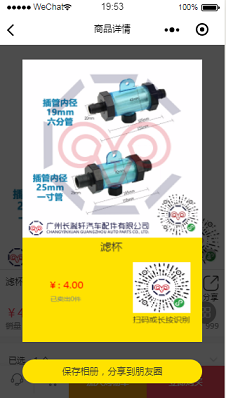
最后放下效果图吧!第一版很丑,勿喷!

















共有 0 条评论 - 微信小程序生成二维码分享海报详解